

Have you ever uploaded a layout and then noticed something you wanted to change about it? We've all done it!
Unfortunately, there's no quick-and-easy way to replace a layout image once it's already been uploaded to the gallery. While we did have an easy and quick option to change out a layout, it was lost in the software upgrade in 2024. As with most upgrades, users don't get a say as to what parts of the software they want to keep or get rid of.
However, Here is a workaround I use when I find myself in that situation.
IMPORTANT!
This method will help you keep the layout details (description and credits) but it will NOT keep any comments. Oscraps also asks that we only upload a layout once, so you need to decide whether to keep the existing layout with the comments or use this method to upload the new version of your layout but lose the comments (by deleting the old layout).
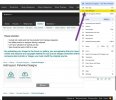
#1 - I open a new browser window. In my case, I'm using Google Chrome. In the upper right corner of the browser window, I click on the three stacked dots and a menu appears. I select "New Window."
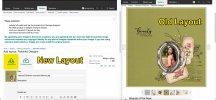
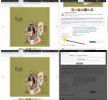
#2 - I arrange my screen so that my two browser windows are side-by-side as shown below. In this case, I'm adding a NEW layout, with the NEW version of my layout image on the left. The browser window on the right shows my OLD layout.
#3 - The first thing I do is select the Designer(s) Used for the new layout. Next, I use my cursor to highlight all of the product credits for the old layout. Then I press Ctrl+C or Cmd+C to copy those credits to my clipboard. Then, I go over to the new layout, position my cursor in the Credits List box, and press Ctrl+V or Cmd+V to paste the credits into the new layout. The links will get copied over, too, and will still work!!! Yay! Follow the same steps to cut-and-paste the Description and the Photo Credits from the old layout to the new layout.
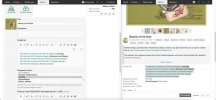
#4 - You can't cut-and-paste the tags, but you don't have to think them up from scratch all over again. Just look at your original tags and type them into your new layout.
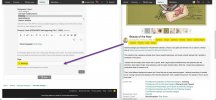
#5 - Because Oscraps asks us to upload only one version of a layout, it's now time to delete the old layout. Underneath the old layout, click Delete. A pop-up window will appear. Select Permanently delete and click the Delete button.
Congratulations!
You've just updated your layout without having to recreate all your work from scratch.

Unfortunately, there's no quick-and-easy way to replace a layout image once it's already been uploaded to the gallery. While we did have an easy and quick option to change out a layout, it was lost in the software upgrade in 2024. As with most upgrades, users don't get a say as to what parts of the software they want to keep or get rid of.
However, Here is a workaround I use when I find myself in that situation.
IMPORTANT!
This method will help you keep the layout details (description and credits) but it will NOT keep any comments. Oscraps also asks that we only upload a layout once, so you need to decide whether to keep the existing layout with the comments or use this method to upload the new version of your layout but lose the comments (by deleting the old layout).
For this example, I'm using my layout called Beauty of the Now featuring the This Moment Collection by Palvinka Designs. The photo of the girl in the pink dress is stock from Unsplash.
#1 - I open a new browser window. In my case, I'm using Google Chrome. In the upper right corner of the browser window, I click on the three stacked dots and a menu appears. I select "New Window."
#2 - I arrange my screen so that my two browser windows are side-by-side as shown below. In this case, I'm adding a NEW layout, with the NEW version of my layout image on the left. The browser window on the right shows my OLD layout.
#3 - The first thing I do is select the Designer(s) Used for the new layout. Next, I use my cursor to highlight all of the product credits for the old layout. Then I press Ctrl+C or Cmd+C to copy those credits to my clipboard. Then, I go over to the new layout, position my cursor in the Credits List box, and press Ctrl+V or Cmd+V to paste the credits into the new layout. The links will get copied over, too, and will still work!!! Yay! Follow the same steps to cut-and-paste the Description and the Photo Credits from the old layout to the new layout.
#4 - You can't cut-and-paste the tags, but you don't have to think them up from scratch all over again. Just look at your original tags and type them into your new layout.
#5 - Because Oscraps asks us to upload only one version of a layout, it's now time to delete the old layout. Underneath the old layout, click Delete. A pop-up window will appear. Select Permanently delete and click the Delete button.
Congratulations!
You've just updated your layout without having to recreate all your work from scratch.
Last edited:
